Your agency needs your Google Analytics 4 data to measure campaigns. You add their Google account to your GA4 property with a role; you keep ownership and can remove them any time.
Steps
- Open Google Analytics and pick the property.
- Click Admin (the gear at the bottom left).
- Under Property, open Property access management. (Account access management works too, but gives access to every property in the account.)
- Click +, then Add users.
- Enter the email your agency gave you and choose a role.
- Click Add.
Which role
| Role | What the agency can do |
|---|---|
| Viewer | see reports and settings |
| Analyst | also create and share their own reports and explorations |
| Marketer | also edit audiences, conversions and attribution |
| Editor | also change the property’s settings |
| Administrator | also manage who has access |
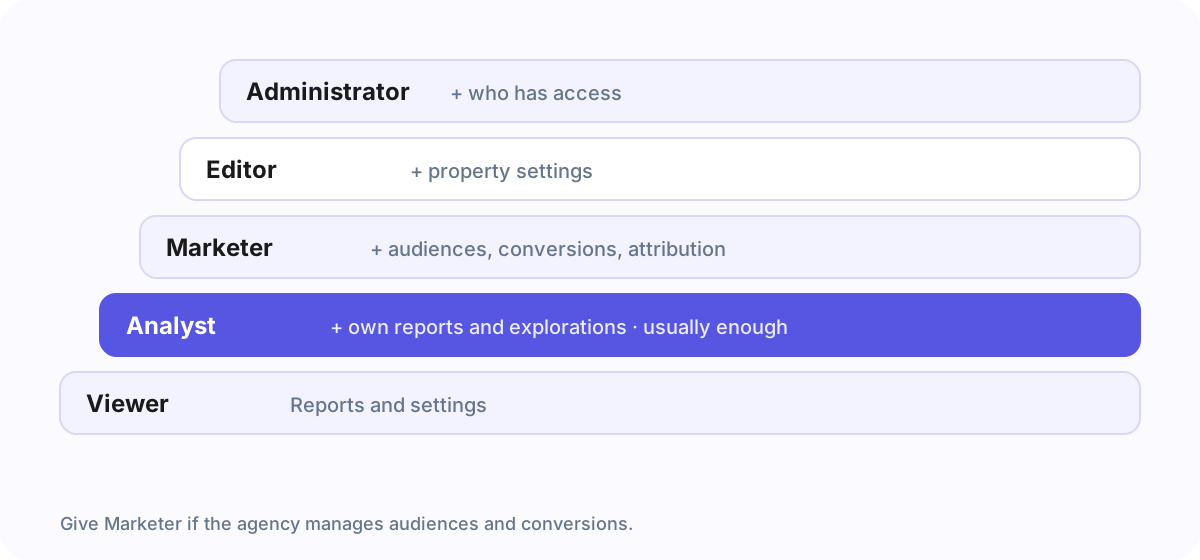
For most agencies Analyst or Marketer is enough. Only give Editor or Administrator if they set up tracking for you.
If Google says the user was not found
The email has to be a Google account: a Gmail address, a Google Workspace address, or another address someone registered as a Google account. A typo in the address also ends here. Ask your agency to check the address; a work address that is not a Google account cannot be added.
Frequently asked questions
Property or account access: which one should I give?
Property access, for the property the agency works on. Account access shows every property in the account.
Can the agency remove other users?
Only with the Administrator role. Give Analyst or Marketer and they cannot.
The quicker way
With an Agency Client Onboarding link you sign in with Google on Google’s own page, tick the property and confirm. The agency’s address and the role are filled in for you, and existing users and their roles are left as they are.